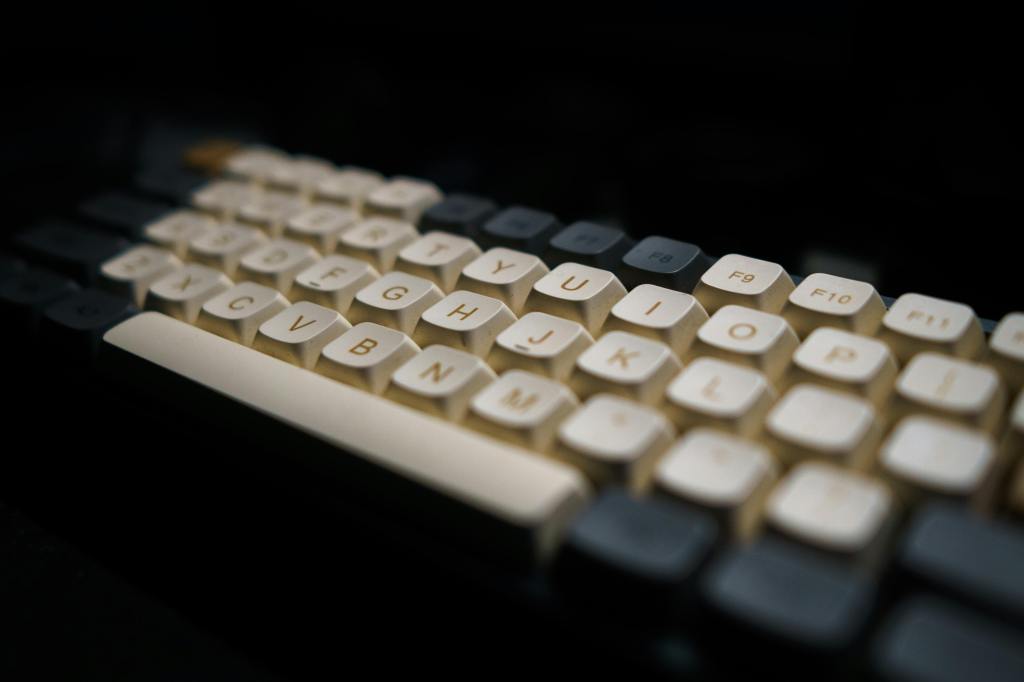
Mechanical keyboards are one of those rabbit holes that start with “Maybe I can freshen up my work/gaming space” but then you blink and suddenly find yourself debating the acoustic profile of plastic vs. ceramic.
Once you understand the basics, it all clicks—pun regrettably intended—but it’s also a deep rabbit hole that branches at several different places, from the different heights of the key caps to the resistance each switch provides when typing. So, let’s break it down in a way that both uses all the vocabulary you’re likely to encounter in the wild, but translated so you know exactly what each feature is and how it will impact your typing experience.
What is a Mechanical Keyboard?
What makes a mechanical keyboard different from what you’ve probably seen around the office? Those flat, clicky keyboards are membrane keyboards. Meanwhile, a mechanical keyboard uses individual mechanical switches under each key, instead of the rubber dome sheets found in most standard keyboards.
This means:
- Each key has its own mechanism (switch)
- You get more consistent feel and durability
- You can customize almost everything about the keyboard
Typical lifespan:
- Mechanical switches: 50–100 million keystrokes
- Membrane keyboards: approx. 5 million
So, a mechanical keyboard (or “keeb,” as you are likely to hear in the hobby) is one of those investments that pays for itself. But is it a comfortable experience while typing all those millions of letters and symbols?
Before we continue, let’s also go over some vocabulary that will be helpful to keep in mind with each new topic introduced.
Vocabulary
- RGB: Backlighting. Not always available for certain keycaps, backlighting illuminates the letters, numbers or symbols you will be typing with. Some mechanical keyboards allow you to program the color of each light, and some manufacturers make these colors and lights responsible to your typing.
- NKRO (N-Key Rollover): Register many keys at once
- Polling Rate: How often input is sent to the computer
- Lubing: Applying lubricant to switches for a smoother typing experience and a cleaner sound. When buying from a manufacturer, you may receive a keyboard that is pre-lubed, but if the layout allows it, you can disassemble parts of your computer and lubcirate it further in the future.
- Stabilizers (“stabs”): Support large keys like the spacebar
Switches: The Base of Operations
Wait, there’s more to a keyboard than just the rectangular base and the keys we tap? Oh yes, but that actually means more customization opportunities. Think of it this way: if keyboards were a floor, the switches are a bit like the subflooring. Everything else matters, but this foundation sets the stage for everything above it.
The Three Core Types
1. Linear Switches
- Smooth all the way down
- No bump, no click
- Examples: Cherry MX Red, Gateron Yellow
Best for: Gaming (fast, uninterrupted presses)
2. Tactile Switches
- Noticeable bump when the key actuates
- No loud click
- Examples: Cherry MX Brown, Boba U4T
Best for: Typing (feedback without noise)
3. Clicky Switches
- Tactile bump + audible click
- Examples: Cherry MX Blue
Best for: People who want that classic typewriter feel (and don’t share an office)
Common Key Switch Terms You’ll See Everywhere
- Actuation Force: How hard you need to press (measured in grams)
- Actuation Point: When the key registers (usually ~2mm down)
- Bottom Out: Pressing the key all the way down (~4mm total travel)
- Pre-travel / Total Travel: Distance before and after actuation
Lighter switches = faster, easier presses, but may lead to mistakes if your fingers bump the wrong key
Heavier switches = more deliberate, but this means less accidental input
Sound Profiles
When you sit down to type or game, you’ll become quite familiar with the sound of your keyboard very quickly. Thanks to the freedom of mechanical keyboards, you can customize this too and have to sound as deeply noisy or as perfectly silent as you desire.
Thocky
- Deep, low-pitched “thock”
- Often from heavier builds, good dampening, and certain switches
- Think: solid, deep, like tapping a dense wooden desk
Clacky
- Higher-pitched, sharper sound, pretty common among office keyboards (you’re most likely to have heard this while working at the desk)
- Often from lighter cases or certain keycaps
- Think: crisp, snappy typing
Creamy
- Smooth, soft, slightly muted sound
- Usually well-lubed linear switches
Silent
- Minimal noise due to dampening inside switches
- Not truly silent, but very close to it, so if any relentless tapping distracts you, this is an incredibly helpful option
Scratchy
- Rough, sandpaper-like feel/sound
- Usually from unlubed or lower-quality switches
What affects sound:
- Switch type
- Case material (plastic vs aluminum)
- Plate material (steel, brass, polycarbonate)
- Foam/dampening
- Keycaps
Changing the sound depends on a variety of factors that you can adjust, or that may come pre-arranged when you buy a mechanical keyboard. Deeper sound profiles will have layers of foam inside to achieve that “thock” sound.
Keycaps: Stability, Resistance, Aesthetic
Keycaps are incredibly versatile and influence the keyboard in both sound and look. With the right tool (helpfully called a keycap puller), you can manually switch out the keycaps (the topmost layer of a keyboard, and the part that our fingers tap when we type).
Different motivators drive a person to change these out; artists can craft their own keycaps to come in entirely different colors, allowing them full control over their keyboard’s look. Different caps also influence the sound, making each tap more thocky, creamy, quiet, etc.
Materials
ABS (Acrylonitrile Butadiene Styrene)
- Smooth, slightly shiny over time
- Often used on cheaper boards
PBT (Polybutylene Terephthalate)
- More textured, more durable
- Resistant to shine
- Usually preferred
Profiles (Shape of the Keys)
- OEM / Cherry: Standard sculpted shapes
- SA: Tall, retro, very “typewriter-like”
- DSA: Flat, uniform height
- XDA: Flat but wider surface
Higher profiles = deeper sound
Lower profiles = faster typing feel
Mechanical Keyboard Sizes and What to Keep in Mind When Choosing
Not all keyboards are the same size. This does not refer to the physical width and height alone of a keyboard, but rather how many keys that keyboard has (although this number will ultimately impact the overall dimensions). This is incredibly important to be aware of when choosing a mechanical keyboard. It is advised that you consider your daily needs and uses when deciding the size of your keyboard. Will you be in an office crunching numbers all day, and so need every symbol available? Do you work best with a number pad? Will you primarily be gaming, and so don’t need a full-size keyboard?
Here are your options:
Full Size (100%)
- ~104–108 keys
- Includes numpad, function row, arrows, all possible keys
Best for: Office work and data entry
Tenkeyless (TKL / 80%)
- ~87 keys
- No numpad
Best for: Balance between gaming and functional typing
75%
- ~82–84 keys
- Compact but keeps the function row intact
Best for: Space-saving without losing much in the way of functionality
65%
- ~66–68 keys
- No function row, but keeps the arrow keys intact
Best for: Minimalist setups that still allows the owner to use arrow keys
60%
- ~61 keys
- No arrows, no function row
Best for: Gaming, portability, or compact/minimalist desk aesthetics
40%
- ~40–45 keys
- Requires layers for everything
Best for: Those who enjoy variety and will not need the missing keys for their selected purpose; typing words is the main function
Connection Types (Plug Types)
USB-A
- Standard rectangular connector
- Works everywhere
USB-C
- Modern, reversible
- Most new keyboards use this
Wireless (Bluetooth / 2.4GHz dongle)
- Cleaner setup
- Slight latency (usually negligible unless competitive gaming)
Hot-Swappable vs Soldered
- Hot-swappable: You can change switches without soldering (huge win)
- Soldered: Permanent you implement specialized tools
Plate, Case, and Build
- Plate: Holds switches (steel = stiff, polycarbonate = softer)
- Case Material:
- Plastic: lighter, often louder
- Aluminum: heavier, deeper sound, more premium
- Mounting Style:
- Tray mount: common, budget
- Gasket mount: softer, “bouncy,” premium feel
These boards can greatly impact the price of a mechanical keyboard, though you may find yourself earnestly preferring the material, feel, and sound offered by a less expensive keep.
Which Keyboard Is Best for You?
Gaming Specs
- Linear switches: fast, smooth
- 60%–TKL sizes: more mouse space
- Wired or low-latency wireless
Reasons: Faster results, fewer accidental distractions
Typing Comfort Specs
- Tactile switches: feedback without noise
- 75% or TKL: comfortable layout
- PBT keycaps
Reasons: Reduces fatigue and maximizes accuracy (caps are more forgiving of errors)
For Quiet Environments
- Silent switches
- Foam-dampened case
- Heavier keycaps: more forgiving of errors
Reasons: Creates a quiet office space that won’t distract yourself or others
Mechanical keyboards have gained popularity across all kinds of spaces, from everyday offices to gaming setups. The options users have to fully customize their mechanical keyboard are extremely exciting, but can feel overwhelming to look at as a whole. Hopefully, this guide offers a helpful signpost as you embark on this exciting journey and make your desk space the best it can be.
Feel free to answer in the comments below: what is your dream keyboard arrangement?





 Daly Wordcraft
Leave a comment